
Column mapping & saved profiles
Connect source columns to Joomla fields and reuse reviewed layouts safely.
How matching works
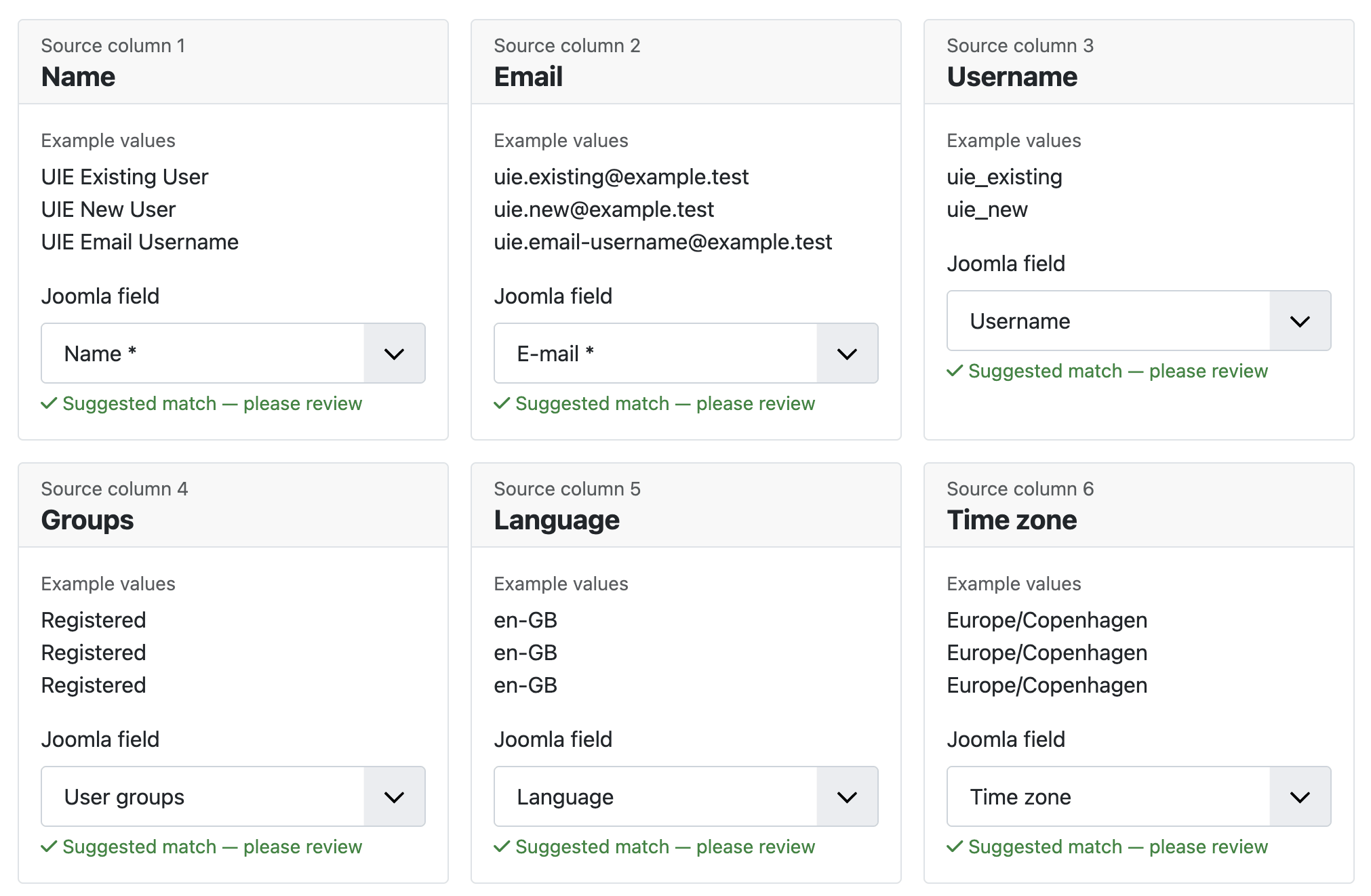
After a file is analysed, the Match columns page shows each source column with its heading, position and example values. Automatic suggestions recognise common labels such as name, full name, e-mail, username, password and groups, including supported translated variants.
Suggestions are starting points only. The selected Joomla field remains editable and must be reviewed before the mapping is saved.
Available target groups
| Group | Examples |
|---|---|
| Standard fields | Name, Username, E-mail, Joomla user ID, Language and Time zone |
| Password | Plain password or Existing Joomla password hash |
| User groups and status | User groups, Blocked, Enabled, Require password reset and Registration date |
| Custom fields | Published supported Joomla user fields, grouped as configured in Joomla |
A source column can normally be matched once. User groups are the exception: multiple source columns may contribute group assignments.
Required mappings
Name and e-mail must be matched before a create-capable mapping can be used. For updates, the selected matching field must also have a usable value in each row being updated.
When launched from Frontend UserManager and its Username = E-mail setting is enabled, username mapping is hidden and the component enforces the e-mail address as username.
Password columns
Mapping a password column does not decide how it will be processed. On the validation page you must also select the matching Explicit password mode. A mapped plain-password column is disabled in hash mode, and a mapped hash column is disabled in plain-password or no-password mode.
Source settings
If the analysis does not represent the file correctly, change the worksheet, CSV delimiter, text encoding or header row and click Analyse again. Review the mapping again because the available headings may have changed.
Saving an import mapping
-
Complete and review the mapping
Choose a target or Do not import for every source column.
-
Enter a profile name
Use a name that identifies the source system or file layout, such as “School system monthly export”. Add an optional description.
-
Save or update
Select Save as new profile, or update the loaded profile when the layout has intentionally changed.
What a profile stores
A mapping profile stores column headings, occurrence numbers and Joomla target keys. It does not store uploaded content, file names, passwords, password hashes or private storage paths. Profiles belong to the user and workflow context that created them.
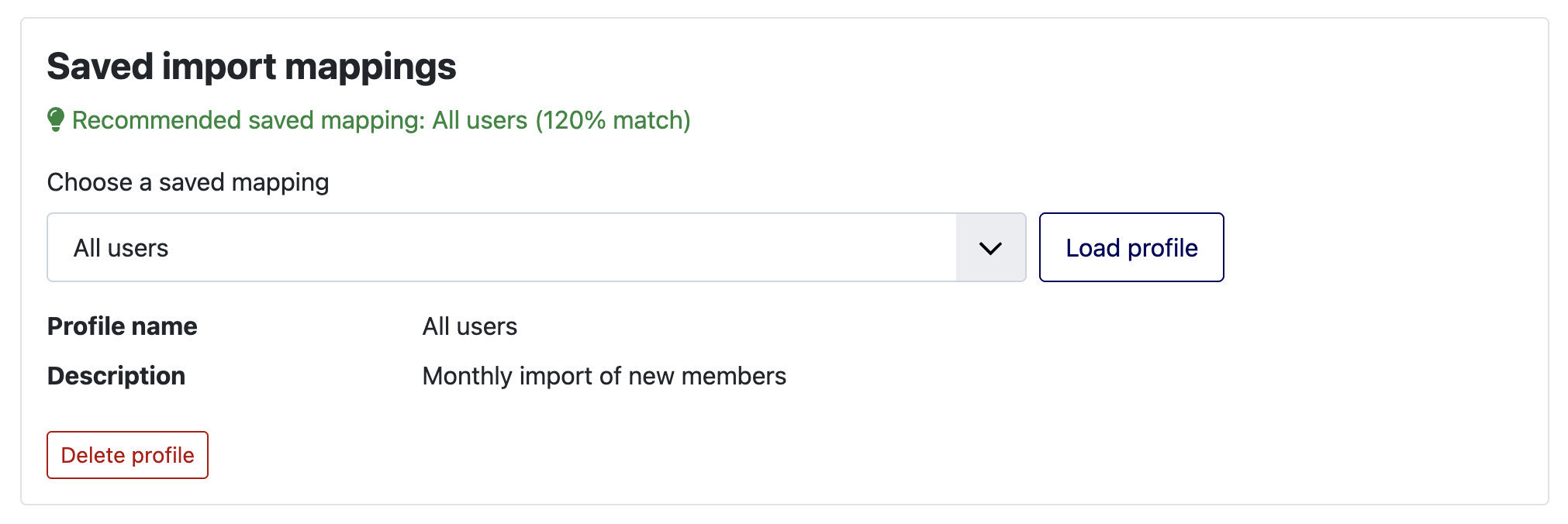
When a later file has a similar layout, the component can recommend a saved mapping and show a match percentage. Always review the loaded profile against the current file before validating.
