Import workflow
Follow the controlled upload, matching, validation and batch-processing workflow.
1. Upload and analyse
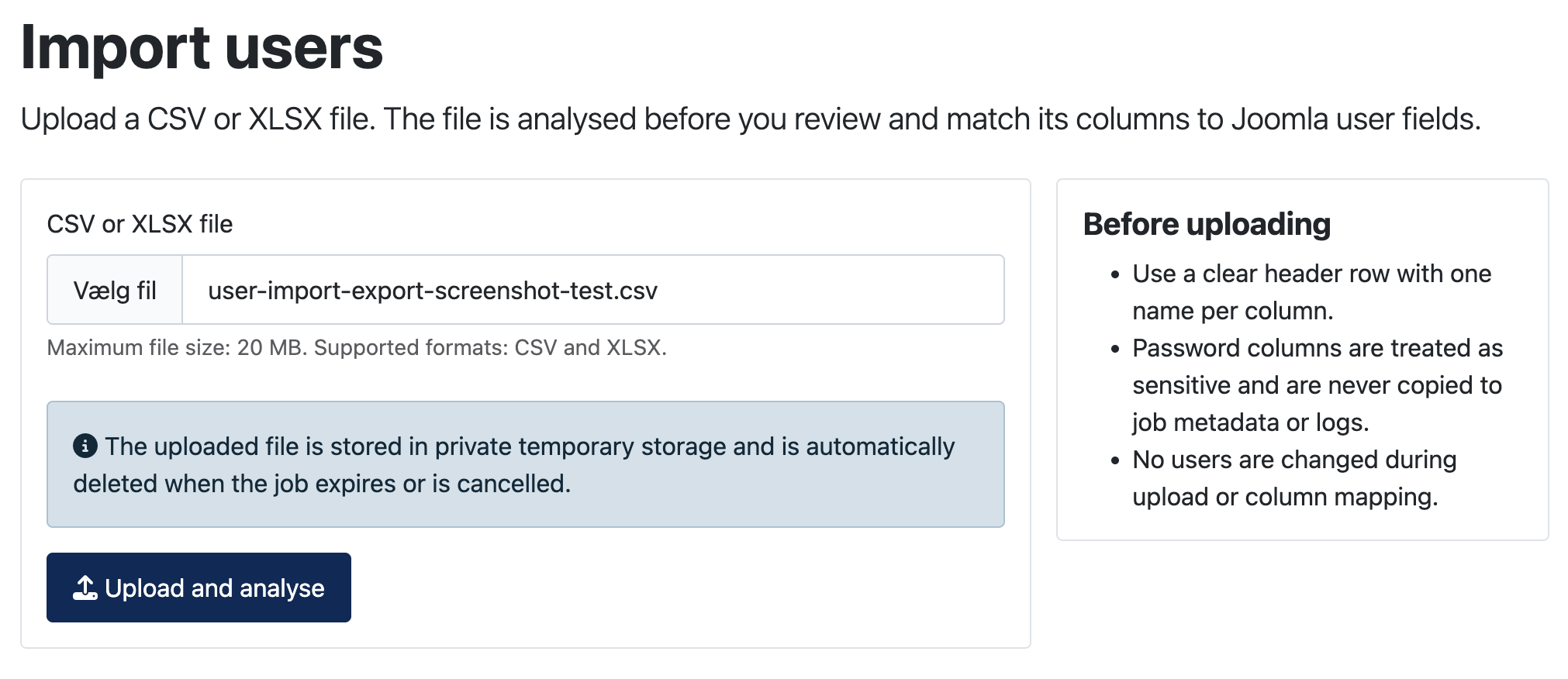
Open Import users, choose a CSV or XLSX file and click Upload and analyse. The file is stored in private temporary storage and is deleted when the job expires or is cancelled.
2. Match columns
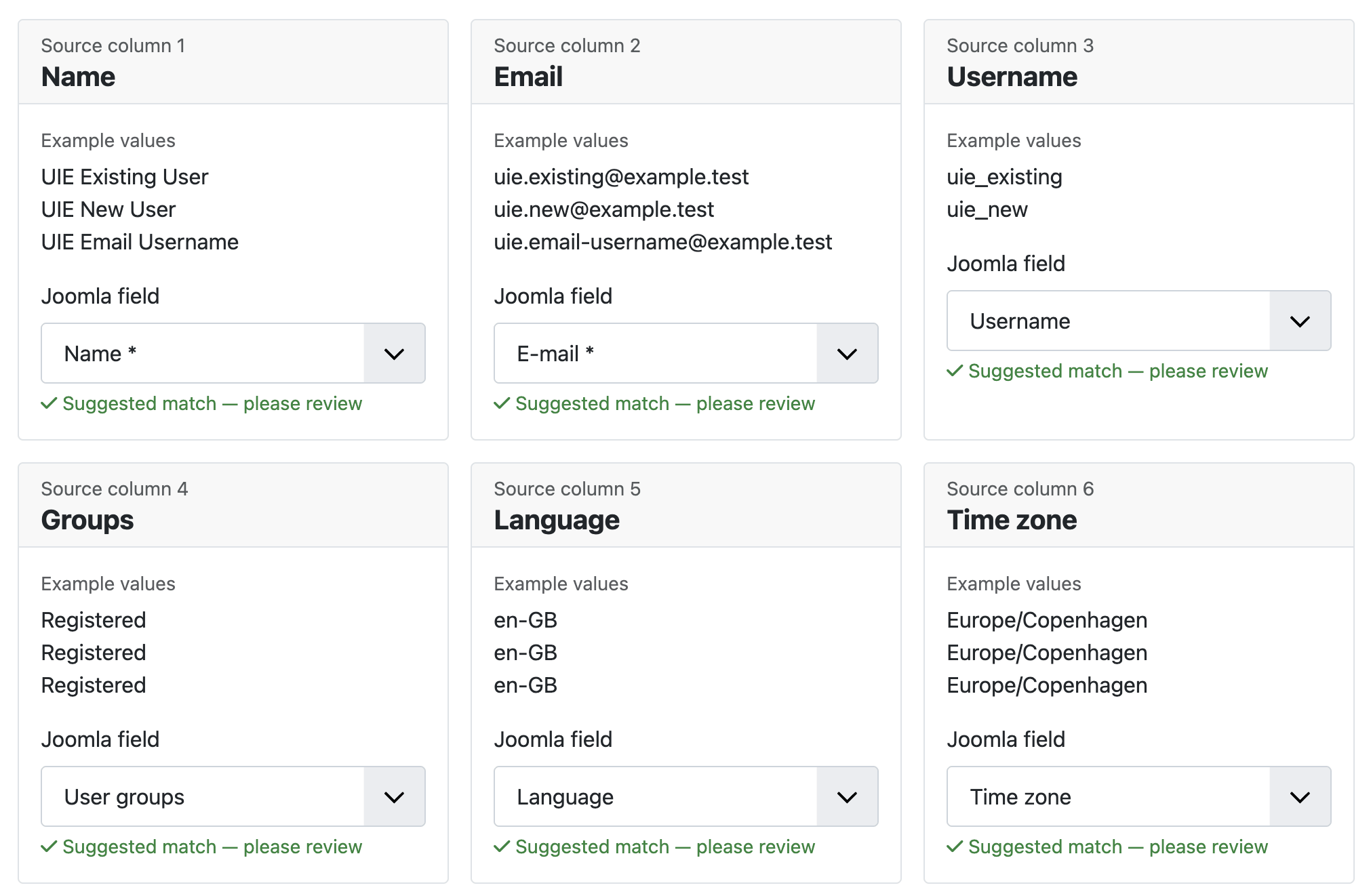
The component displays each source heading, example values and a suggested Joomla field. Review every suggestion, adjust the source settings if necessary and select Do not import for irrelevant columns.
You can load a saved mapping before reviewing the matches. Mapping is covered in detail in the separate Column mapping & saved profiles article.
3. Choose the import strategy
| Strategy | Behaviour |
|---|---|
| Create new users only | Rows that already match a Joomla user are not updated. |
| Update existing users only | Rows without an existing match are not created. |
| Create new and update existing users | Creates unmatched users and updates matched users. |
Existing users can be matched by e-mail, username or Joomla user ID. Select a field that is stable, present in every relevant row and unique in both the file and Joomla.
4. Decide how updates behave
- Empty cells: keep the existing value or clear it.
- Status: explicitly allow mapped Enabled/Blocked values to change Joomla status.
- Registration date: explicitly allow imported dates.
- Groups: merge imported groups with existing groups or replace existing groups.
- Fixed groups: add selected groups to every imported row.
- Passwords: select an explicit password mode and decide whether existing passwords may change.
- Welcome mail: optionally send Joomla's welcome mail to new users.
5. Run full validation
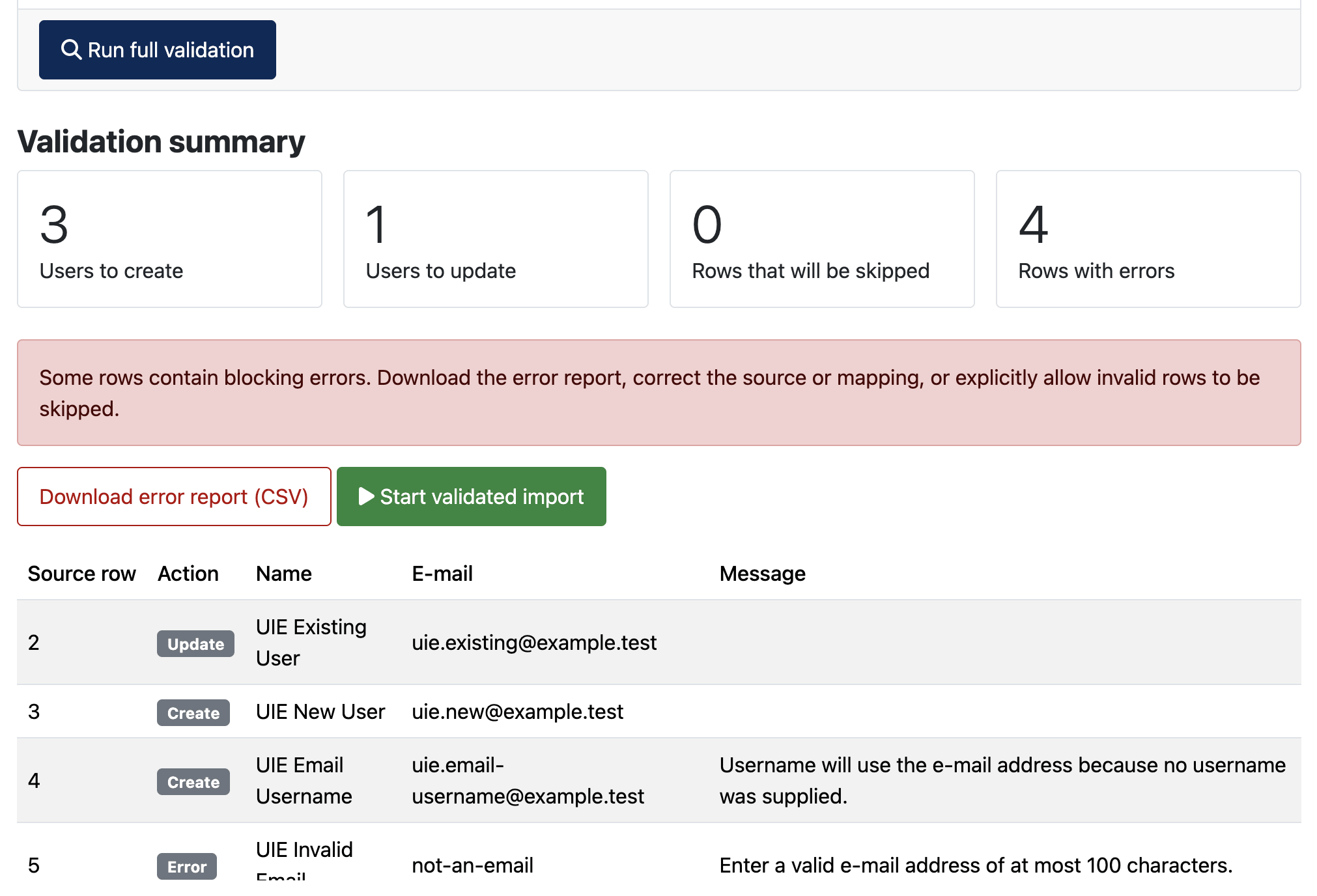
Click Run full validation. The complete file is tested using the selected permissions and settings, but no Joomla users are changed. Review the totals for create, update, skip and error, then inspect the row messages.
6. Start the validated import
When the validation result is acceptable, click Start validated import. If blocking errors exist, correct them or explicitly allow invalid rows to be skipped.
If you change the file, source settings, mapping or import options, run full validation again before processing.
7. Monitor progress and results
Rows are processed in batches. A temporary connection problem or closed browser does not require the whole operation to start again. Reopen the job from Recent jobs and continue it.
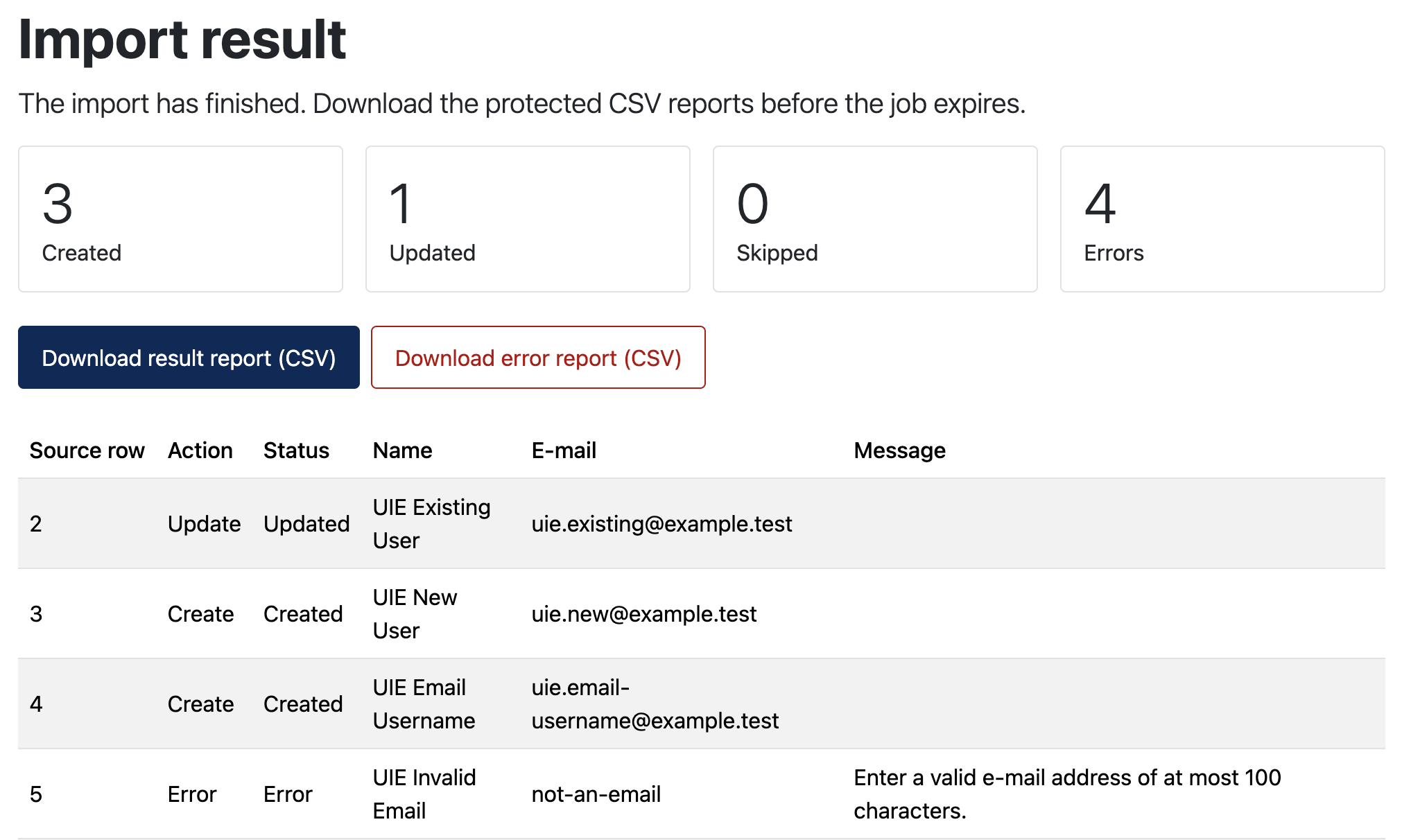
After completion, download the protected result report before the configured retention period expires.